

Description

(Andúril not included in this instructions pack)
About the models
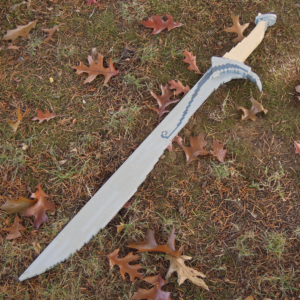
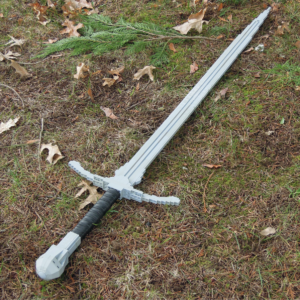
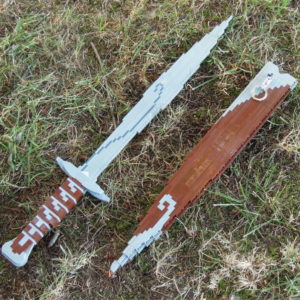
Each of these three custom LEGO swords from the troll-hoard in The Hobbit is designed as a premium display piece and looks like an ultimate collector’s LEGO set.
- Sting & Scabbard
(22″ / 55cm long with 655 pieces) - Glamdring
(47″ / 120cm long with 315 pieces) - Orcrist
(38″ / 98cm long with 485 pieces)
Each of my realistic Brick Replicas takes many hours to research and design by hand. The professional-grade instructions are also a massive project. There’s no AI involved with the design and no shortcut to this level of realism and quality—my goal is to provide you with the most realistic replicas and the best building experience. I’m grateful for all your support, and each instructions purchase allows me to continue creating more of these deluxe models.
—Cole Edmonson

This combo pack includes the following instructions sets:
Sting & Scabbard | Glamdring | Orcrist
For more details, click each link to learn more about that individual instructions pack. Each of these links also offers a free download of that model’s respective parts list code, so you can better estimate the parts cost and figure out if you already have some of the needed pieces.
Click here for free wall mount instructions and parts list.
Nails/screws or 3M Command Strips may be used to hang each wall mount.
(Note that the same wall mount design fits all of my LOTR swords.)
Check out the collection of weapon replicas here.
How to Upload XML Code to BrickLink
- Open the .rtf file containing XML code.
- Copy the entire contents of the text starting with “<INVENTORY>”.
- Go to https://bricklink.com.
- Create an account on BrickLink if you don’t have one yet. Make sure you’re signed in.
- In the drop-down menu options under your profile, select “My Wanted Lists”.
- There will be several tab options in your ‘Wanted Lists’ section; select “Upload”.
- Select the sub-tab “Upload BrickLink XML format”. Then, under the ‘Add to:’ drop-down menu, choose “Create New Wanted List” and give it a name.
- Paste the entire text you copied in Step 2.
- Click “Proceed to verify Items”; at this point you should see the list of parts you need to purchase.
- You can now buy all the parts you need by selecting this newly created wanted list from your My Wanted Lists section and either choosing the ‘Easy Buy’ button or clicking into the wanted list and choosing ‘Buy All’ for more cart-creation options (e.g. limiting sellers/stores to only those from your country, etc.).Pro tip: If you have multiple models you’re shopping for (e.g. gun and display stand and display plaque), it’s highly recommended you upload all their parts to the same Wanted List so that you can more easily combine them into the smallest possible number of shopping carts / stores / orders placed at the same time for less expensive shipping.
If you encounter any parts errors (for example, parts 3062b, 3068b, 3069b and/or 3070b) when trying to upload your parts list code to BrickLink, open the text file with XML code in a text editor app, search for those codes (Command+F or Ctrl+F) and delete the ‘b’ or other add-on letter in each code. If you encounter any further issues, please contact me.
Note: “LEGO” is a trademark of The LEGO Group, which the seller is not affiliated with or endorsed by: same goes for The Saul Zaentz Company (d/b/a Middle-Earth Enterprises) and its associated properties (e.g. The Lord of the Rings), along with 3M and its Command brand of products.
Note that this is a digital purchase that gives you the access and individual right to download and use the instruction files, parts lists, and XML code for this custom model. You will not receive any physical items or pieces as part of this transaction.